Start with a saved deck
In Properties, choose a narration voice available to your account. In Slides, write the narration for each slide in Notes and save your deck. Open Presenter. Changing the visual character keeps your voice and Notes.
Choose a character and layout
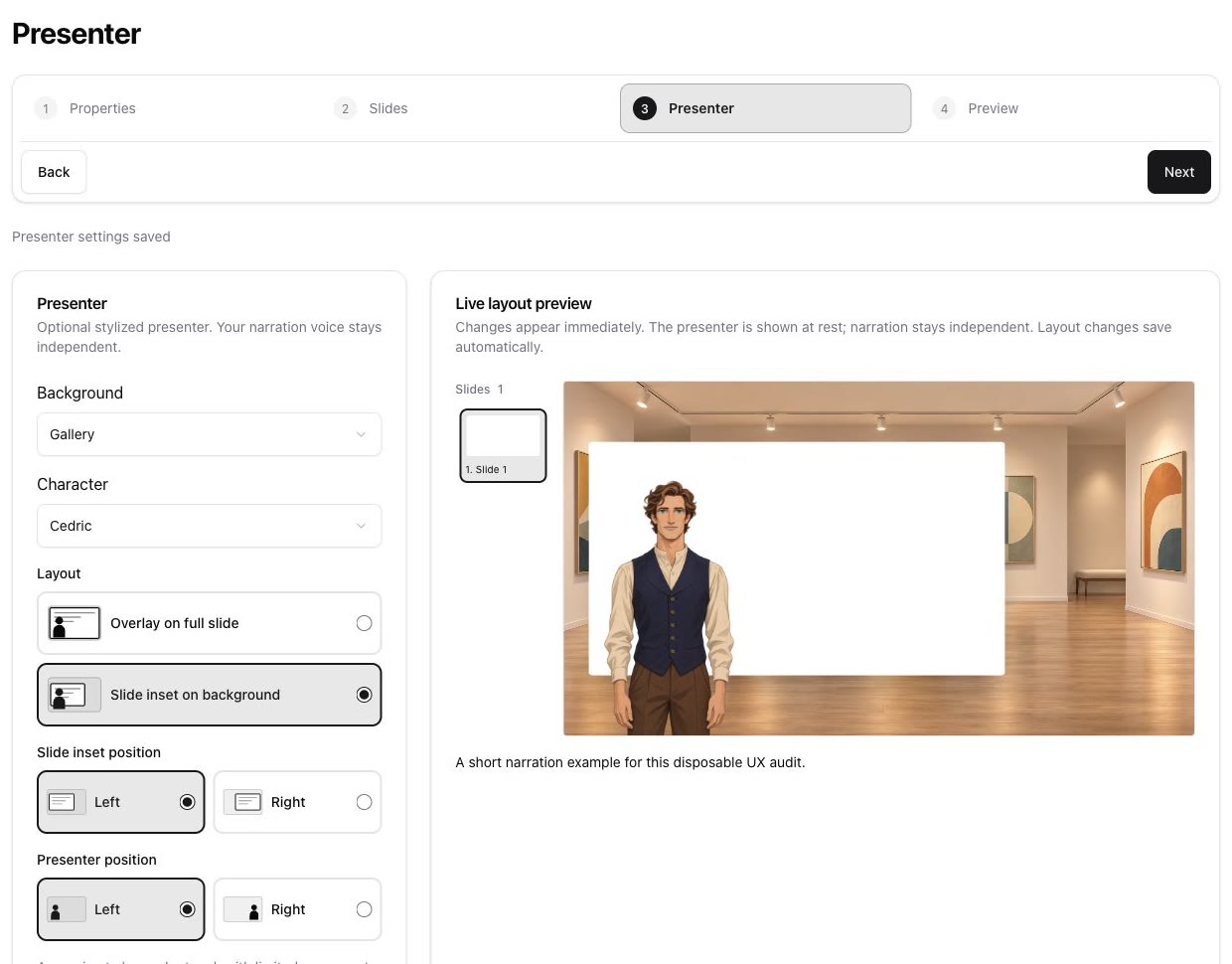
- Open Character and select a stylised character. For a slides-only video, choose None and keep the full-slide overlay.
- Under Background, choose Use slide background (overlay) to keep the slide full-size. Presenter position moves the character to the left or right.
- Choose a scene under Background to switch to a slide inset. Confirm the Layout, then set Slide inset position and Presenter position independently where shown. Start with the slide and character on opposite sides so the content stays readable.
- Click through the thumbnails in Live layout preview. The character is at rest here. Check each slide for overlaps and small text, especially charts and diagrams.
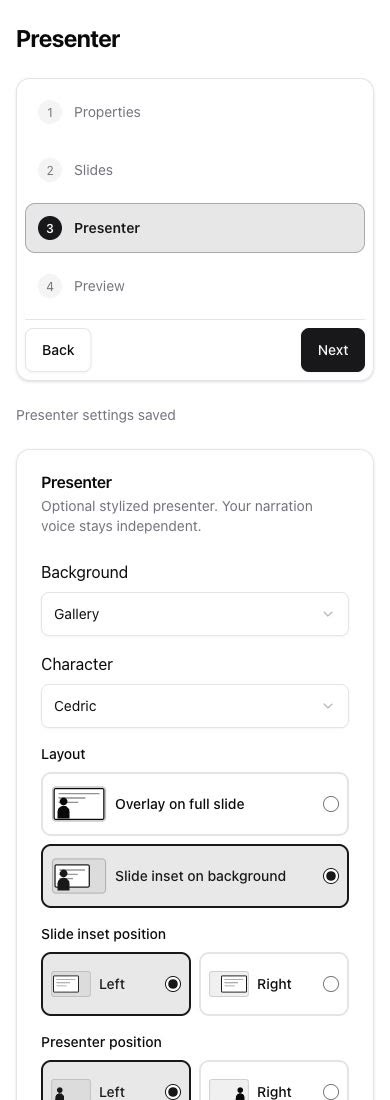
Open the narrow-screen Presenter screenshot.
Generate and review the video
Open Preview, select Generate Video, and watch the completed render. Automatic lip sync follows the selected narration. Slides with empty Notes are silent.
After changing the character, layout or narration, generate a fresh video before downloading or sharing. Your earlier downloaded files and pinned shares keep the previous version until you replace them. An editable PPTX contains the slides and Notes, while the animated character and generated narration are part of the video.
See Animated Presenters for the two layouts, the announcement for a walkthrough, or Export and Sharing when the video is ready.