Add an animated presenter to your SlideVids videos

A narrated slide deck doesn’t always need a face on screen. But for a lesson, a product walkthrough or a short explanation, an animated presenter gives you another way to deliver it without filming yourself.
SlideVids now has a Presenter step between Slides and Preview. Choose a stylised character, decide where it sits and check the composition before generating your video. If you’d rather keep the focus on your slides and narration, leave Character set to None and choose the full-slide layout.
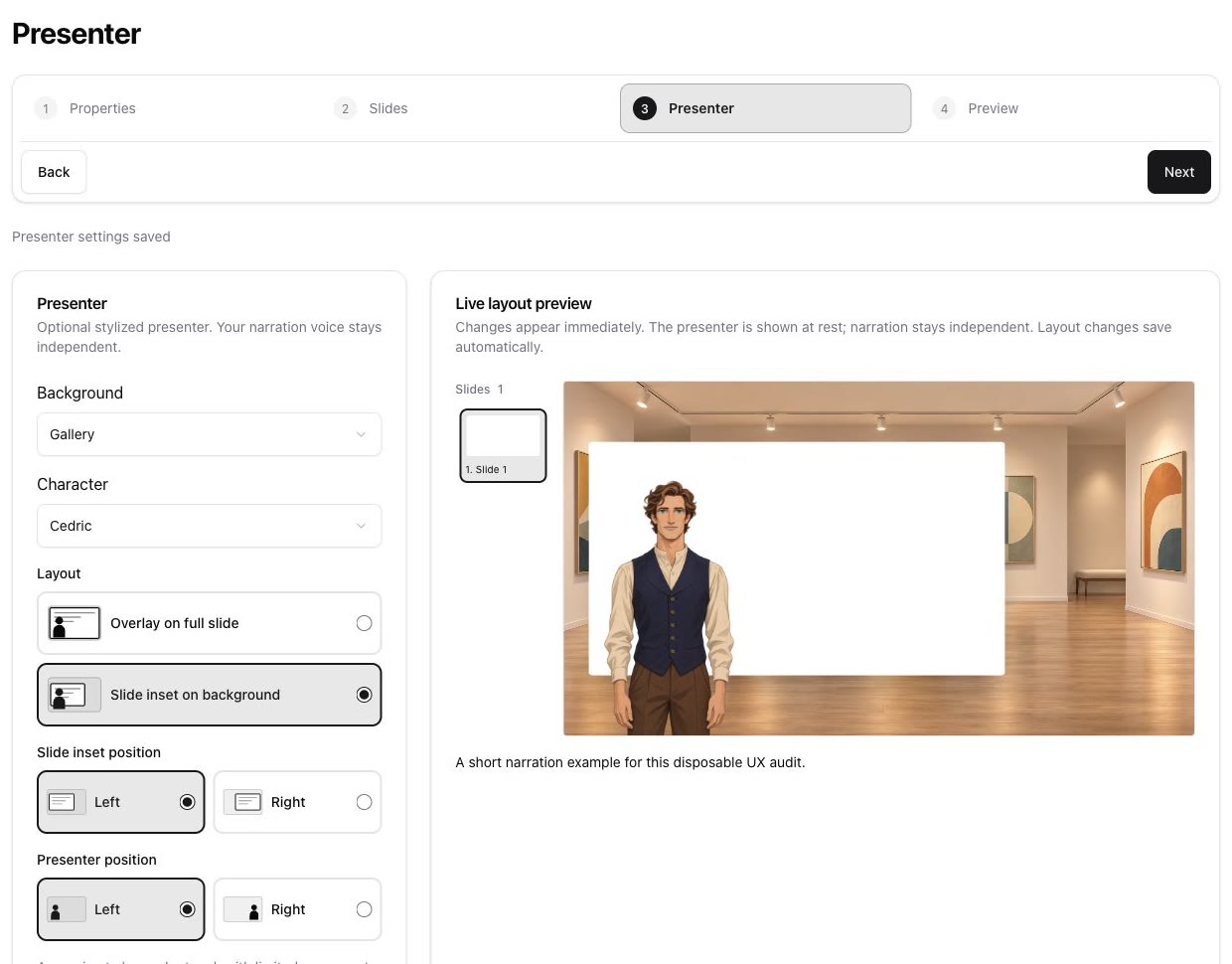
Choose the look without changing the voice
The presenter is a visual choice. Changing the character keeps the narration voice and script. Write what you want said in Notes and choose a voice separately in Properties. Voice options depend on your plan and what’s available to your account.
For an induction video, try a stylised character next to the slide. For a detailed diagram or a slide your audience needs to read closely, you may prefer to skip the character altogether.
Make room for your slides
- Overlay on full slide keeps the slide full-size and places the presenter on the left or right. Select Use slide background (overlay) to use the slide itself.
- Slide inset on background places the slide within a scene. Try a Classroom, Conference room, Keynote stage or Warehouse. You can position the slide and character independently.
Use the slide thumbnails to check several slides. A layout that works for the title might cover a chart or make a text-heavy slide hard to read. Compare the layouts.
Check the layout, then watch the result
The Live layout preview shows your composition with the character at rest. To see the presenter speak, go to Preview, select Generate Video and watch the completed render. The movement follows the generated narration. A slide with no Notes stays silent. Check the pacing and slide readability before downloading or sharing. If you change the character, layout or script afterwards, generate again to include those changes.
Try it with two slides and a few sentences of Notes. Open SlideVids, follow the Presenter guide, or read the Version 2 walkthrough.