Add an animated presenter to your slides.
Put a stylised character on screen without filming yourself. Keep editing your slides and narration Notes, and choose the narration voice separately.
Two ways to place your presenter
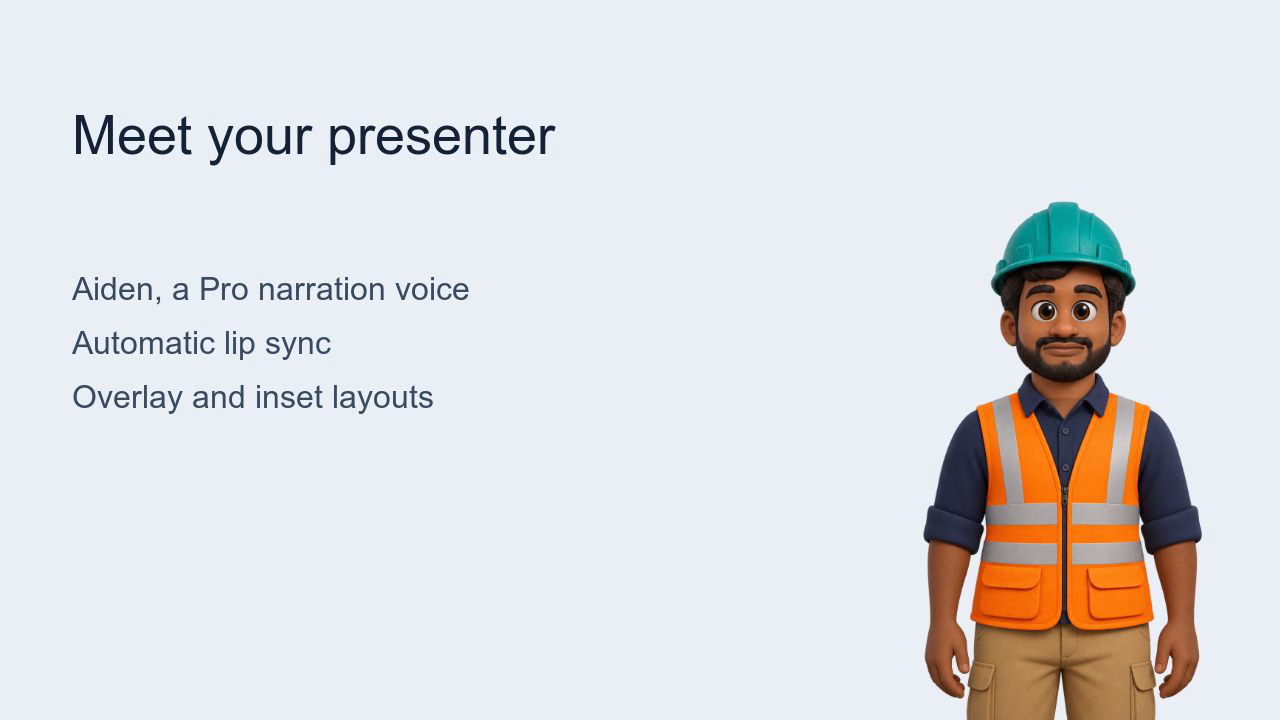
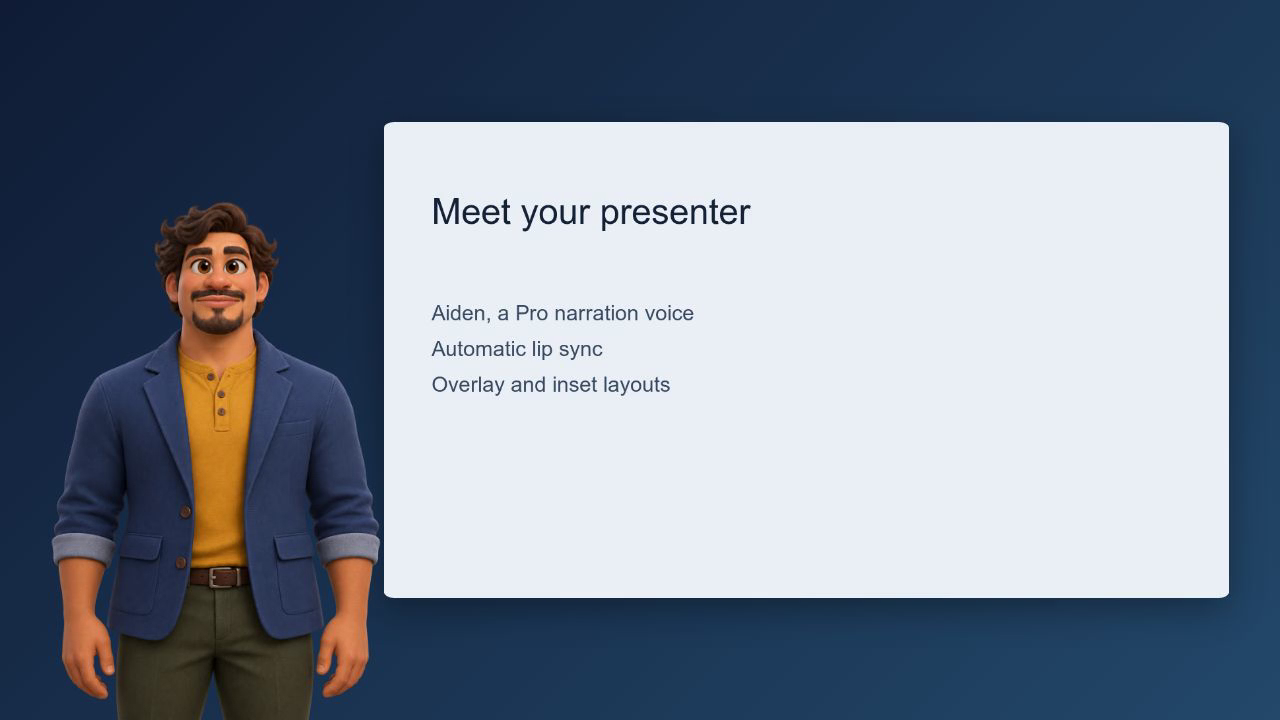
Both examples use different presenters from the built-in catalogue; the narration voice is selected separately.
Watch a generated video
Transcript and visual description
A presenter speaks over the full-size slide in the overlay version, then a second presenter stands beside the inset slide. The narration in each version is “Hello. This is the selected narration voice. Pause, then seek to see the presenter stay in sync.” The second slide in each version has no narration.
Where a presenter can help
- Training
- Welcome new staff to an induction, then give the safety checklist the full slide.
- Lessons
- Introduce a concept beside an inset slide with room for a diagram.
- Product walkthroughs
- Explain a setup sequence while the slides show each screen.
Presenter questions
Do I need a presenter?
Presenter is optional. Leave Character set to None for a slides-only video.
Can I choose the narration separately?
Yes. Choose a voice available to your account in Properties. The character is a stylised avatar from the built-in catalogue. It uses automatic lip sync to the selected narration in the generated video.
When will I see the character move?
Live layout preview shows the character at rest. Open Preview, select Generate Video and watch the completed render.