How to Narrate a PowerPoint Without a Microphone

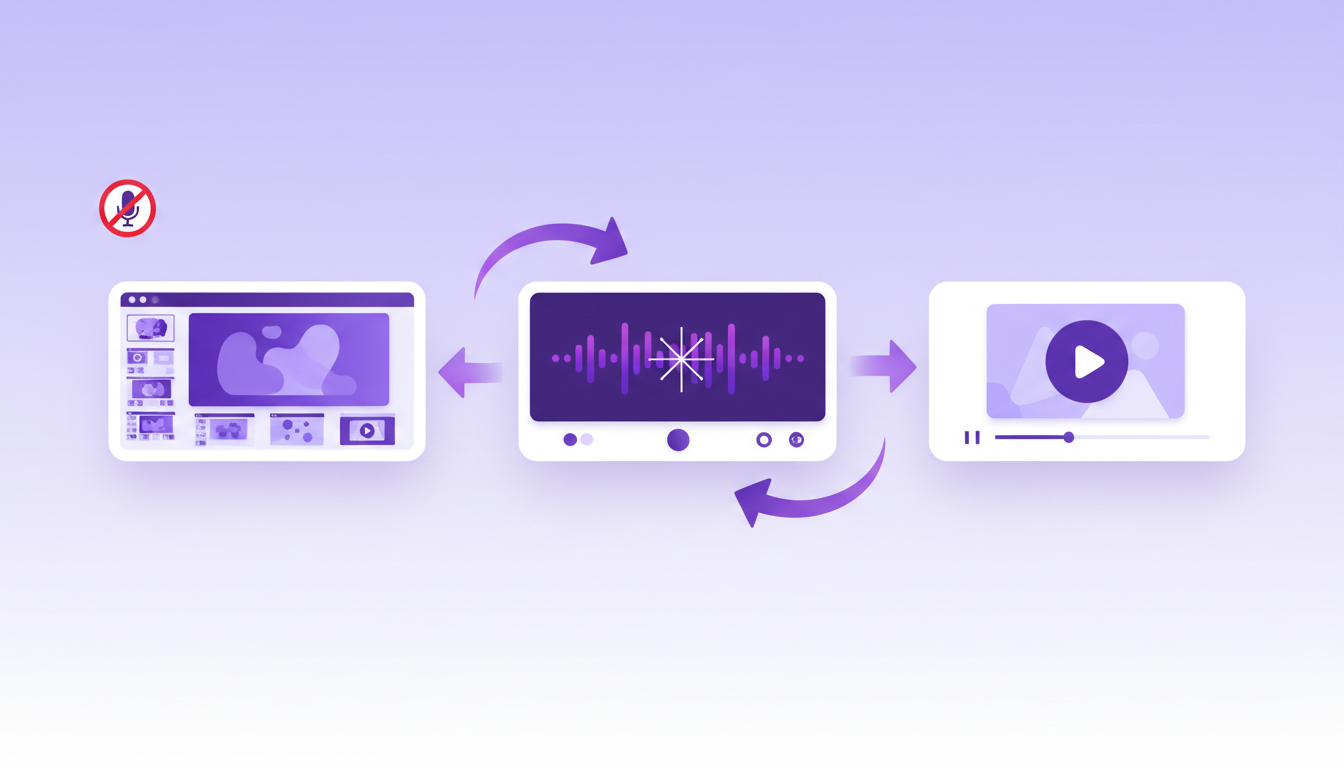
If you need to narrate a PowerPoint without a microphone, the real challenge usually is not PowerPoint itself. It is the recording workflow around it: finding a quiet space, getting a clean take, re-recording when a sentence changes, and then exporting everything in the right format. The good news is that you have more than one way to do it. You can use native PowerPoint features, text-to-speech workflows, or a purpose-built tool like SlideVids to turn your slides into a narrated video without setting up recording gear.
This guide walks through the practical options, when each one makes sense, and how to pick the fastest path if you need polished results quickly.
Why people look for a way to narrate PowerPoint without recording
Most presentation creators are not trying to become voiceover editors. They already have the hard part done:
- The deck exists
- The story is mapped out
- The speaker notes are mostly written
- The presentation needs to be shared as a video, lesson, walkthrough, or proposal
What slows everything down is the audio step. A single ten-minute recording can easily turn into an hour of setup, re-takes, trimming, and exporting. If the presentation changes later, you often have to start again.
That is why “how to add narration to PowerPoint without a microphone” has become a real workflow problem, not just a software question.
Your main options
There are three realistic ways to narrate a PowerPoint without a microphone:
- Use PowerPoint’s built-in tools and record in-app when you still have access to a microphone later.
- Use text-to-speech or AI voice generation so the narration comes from your script instead of your live voice.
- Use a presentation-to-video tool that combines scripts, slides, voice generation, and export in one workflow.
The best option depends on whether your goal is quick narration, ongoing updates, or a polished video that is easy to revise.
Option 1: Use PowerPoint’s native presentation tools
If you want to stay entirely inside Microsoft PowerPoint, you can add audio and export a video from the deck. This works best when you are comfortable with PowerPoint and only need a lightweight solution.
What PowerPoint can do well
PowerPoint gives you a familiar editing environment, and many teams already have it installed. You can:
- Add speaker notes
- Control slide timing
- Export a presentation as video
- Keep everything inside the original
.pptx
For some users, that is enough.
Where the native workflow breaks down
PowerPoint does not remove the core production friction if you are trying to avoid using a microphone altogether. You still need a narration source. If you are not recording your own voice, you have to create that audio elsewhere and then fit it back into the deck.
That creates a fragmented workflow:
- Write the script in PowerPoint
- Generate voiceover in another app
- Download audio files
- Match them to slides
- Re-export after every revision
If the presentation changes frequently, this can get tedious very quickly.
Option 2: Use AI voice generation from your script
If your real goal is “I have the words, I just do not want to record them,” AI narration is usually the better fit.
Instead of speaking into a microphone, you write or paste the narration text. A text-to-speech engine generates the audio for you.
This approach is especially useful when:
- You need a clean, consistent voice
- You want to avoid recording gear entirely
- You expect script revisions
- Multiple teammates need the same voice and tone
- You are producing several narrated presentations, not just one
What changes in an AI voiceover workflow
With AI voiceover, your script becomes the source of truth.
That means when you need to fix a sentence, update a statistic, or rewrite a section, you edit text instead of booking another recording session. This is a major difference for:
- Course creators updating lessons
- Trainers revising onboarding material
- Marketers refreshing launch decks
- Sales teams personalizing presentations at scale
If your slides are already written, this is usually the shortest path to a narrated result.
Option 3: Use SlideVids to turn slides into narrated video
If you want the easiest end-to-end workflow, SlideVids is designed for exactly this use case: turning slide content, outlines, or speaker notes into narrated videos without recording.
Instead of treating narration as a separate post-production step, SlideVids keeps the script and the visual sequence together. You can:
- Start with existing slides or import a PowerPoint deck through PowerPoint import
- Write narration in notes or slide text
- Generate narration with AI voices
- Regenerate only the slides that changed
- Export a finished video or assets for further editing
For people asking how to narrate a PowerPoint without a microphone, this is usually the cleanest answer because it removes the “record, edit, sync, repeat” cycle.
Step by step: how to narrate a PowerPoint without a microphone
Here is the practical workflow I recommend.
Step 1: Start with your actual script, not the slides alone
Before you think about export settings, make sure the narration exists in text form.
That text can live in:
- PowerPoint speaker notes
- A rough outline in a doc
- Slide bullets that need expansion
- A cleaned-up presentation script
If your deck already exists but the notes are weak, use the free PowerPoint speaker notes generator to create or improve the narration draft first. That gives you structured, editable narration slide by slide without recording anything.
This matters because every good no-microphone workflow depends on text as the source.
Step 2: Decide whether you want narration inside PowerPoint or as a finished video
This is the first decision point.
Choose the PowerPoint-first route if:
- You mainly need to keep working inside
.pptx - You only need a lightweight narrated deck
- You are okay doing some manual stitching
Choose the video-first route if:
- You need a finished shareable asset
- You want an easier publish path for training, marketing, or sales
- You expect changes after the first version
If your end goal is a video anyway, it usually makes sense to use a dedicated workflow from the start.
Step 3: Generate narration from text instead of recording it
This is the point where you replace the microphone entirely.
You can use an AI voice workflow to turn each slide’s script into narration. The biggest advantages are:
- No room noise
- No re-takes
- Consistent delivery across the whole deck
- Fast revisions
In SlideVids AI voices, you can type or paste the narration, choose a voice, preview it, and regenerate the result after edits. That means the narration process behaves more like document editing than audio production.
Step 4: Review pacing and slide flow
Even when you are not recording, timing still matters.
As you review the first generated pass, look for:
- Slides that need shorter or longer narration
- Sections where the visual changes too early
- Repeated wording that sounds unnatural
- Bullet-heavy slides that need more explanation
This is where text-based narration is much easier than recorded audio. You can fix the pacing by editing the script directly. You are not trimming waveforms or trying to save a take that almost worked.
Step 5: Export in the format you actually need
After the narration and pacing feel right, export based on the destination:
- Shareable video for a course, demo, or client presentation
- Downloadable assets for editing later
- Presentation package for a professional editor
If you need flexible delivery, shareable video pages and pro editor export make it easier to move beyond a static deck.
Native PowerPoint vs AI narration vs SlideVids
Here is the simplest way to compare the approaches.
Native PowerPoint
Best when:
- You need to stay in PowerPoint
- Your deck is simple
- You do not expect many revisions
Tradeoffs:
- Narration workflow is still manual
- Avoiding a microphone usually means another tool anyway
- Updates can become repetitive
Standalone AI voice generator
Best when:
- You already have a full script
- You only need the audio
- You do not mind stitching the workflow together
Tradeoffs:
- Slide sync is still your job
- You manage export in multiple tools
- It is easy to lose track of which audio file matches which slide
SlideVids
Best when:
- You need a full narrated presentation or video
- Your deck changes often
- You want scripts, visuals, and narration in one place
Tradeoffs:
- It is a dedicated workflow, not just a single export utility
- You get the most value when you want repeatable presentation-to-video production
Common mistakes to avoid
When teams try to narrate PowerPoint without recording gear, they often run into the same problems.
Mistake 1: Treating audio as the final step
If narration is added only after the deck is “done,” every slide change becomes expensive. It is better to keep the script tied to the slide structure from the beginning.
Mistake 2: Writing slides and narration as if they are the same thing
Slide copy should stay concise. Narration should carry the explanation. When teams force the slide text to do both jobs, the deck becomes crowded and the video sounds awkward.
This is one reason speaker notes are so useful. They let you keep the visual clean while still writing a complete spoken script.
Mistake 3: Optimizing for the first version instead of the tenth
The first narration pass matters, but maintenance matters more. If your process breaks the moment someone updates pricing, changes a feature name, or swaps a slide, it is not a scalable workflow.
Best workflow by use case
Different teams should solve this differently.
Educators
If you are turning lesson slides into asynchronous lectures, use a text-based narration workflow from the start. You will almost certainly need to revise examples, dates, or terminology later. That makes SlideVids for educators a much better fit than manual audio recording.
Trainers and L&D teams
Training content changes often. Narration that can be regenerated from updated text is dramatically easier to maintain than recorded voiceover. SlideVids for trainers is designed around that update cycle.
Marketing teams
Campaign decks, feature launches, and sales enablement material move fast. If the message changes weekly, you want to update copy and regenerate, not coordinate a new recording session every time. That is why SlideVids for marketing teams focuses on speed and consistency.
Sales teams
Sales presentations often need light personalization. Recording every version yourself does not scale. A text-driven workflow helps you adjust the message without rebuilding the production process, especially for sales teams working from repeatable decks.
FAQ
Can I really add narration to PowerPoint without a microphone?
Yes. The easiest way is to generate narration from text rather than recording your own voice. You can do that with text-to-speech tools or an end-to-end workflow like SlideVids.
Does PowerPoint have built-in text-to-speech narration?
PowerPoint supports notes, timings, and media workflows, but a complete no-microphone narration setup often requires an external text-to-speech or AI voice tool, especially if you want high-quality results and easy revisions.
What is the fastest way to narrate slides without recording?
The fastest workflow is usually:
- Create or clean up speaker notes
- Generate AI narration from the text
- Review pacing
- Export the final video
If you want all of that in one place, SlideVids is built for it.
What if I already have a PowerPoint deck?
You do not need to start over. You can import the deck with PowerPoint import, generate narration from notes or script text, and build the video from there.
Final takeaway
If you are searching for how to narrate a PowerPoint without a microphone, what you really need is not just a workaround for missing hardware. You need a workflow that treats narration as editable text instead of a fragile recording session.
For one-off presentations, PowerPoint plus a separate AI voice generator might be enough. But if you create presentation videos regularly, update them often, or want a simpler path from deck to finished result, SlideVids is the more durable solution.
If you want to start with the script itself, try the free PowerPoint speaker notes generator. If you are ready to turn the whole deck into a narrated video, explore AI voices or create an account to test the workflow end to end.