Import PowerPoint: Turn Your Existing Presentations Into Videos

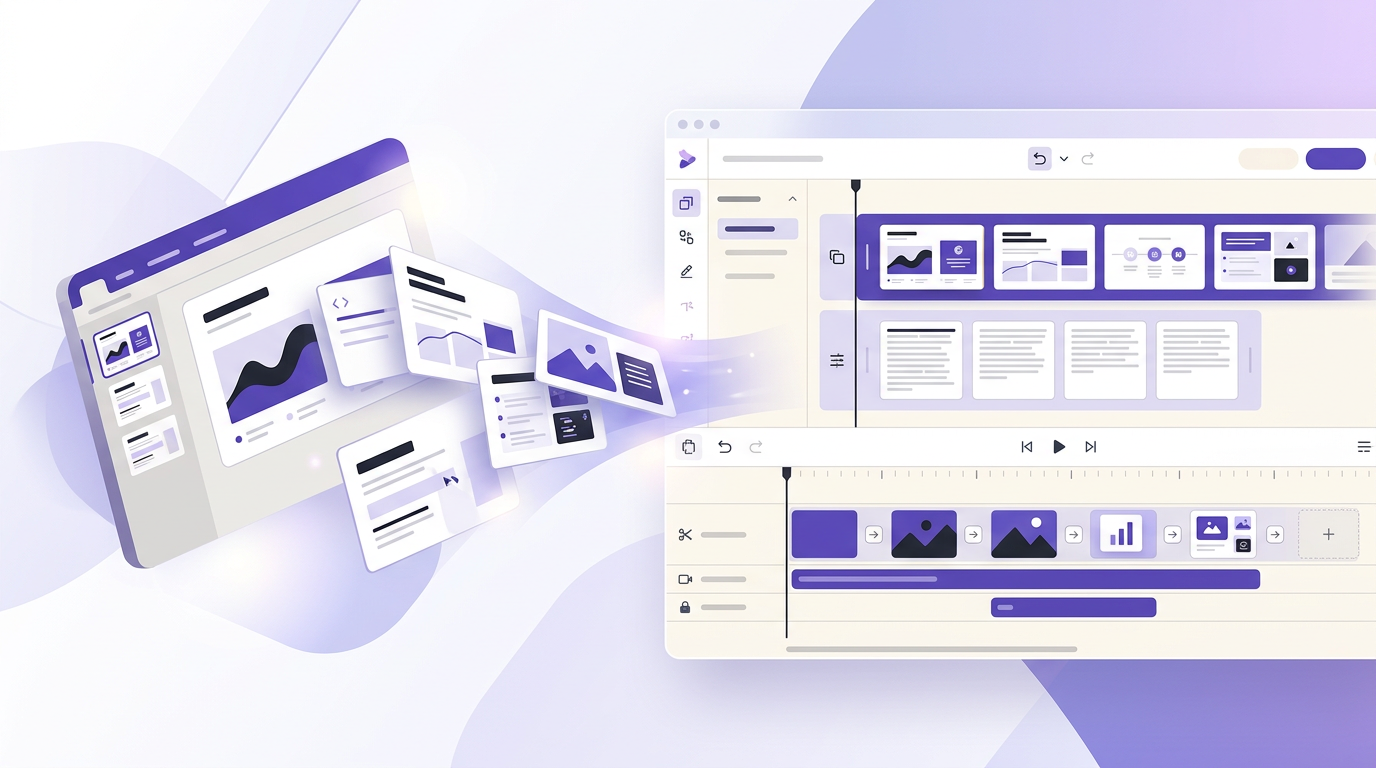
You’ve got a library of PowerPoint presentations—training decks, sales pitches, quarterly updates, conference talks. They’re sitting in shared drives, gathering dust. What if you could turn every one of them into a professional narrated video without recreating a single slide?
Today, we’re excited to introduce PowerPoint Import—upload any .pptx file and SlideVids automatically extracts your slides, images, and speaker notes into a fully editable timeline, ready for AI narration and video export.
Why Import Matters
Manually recreating presentations is tedious. A 20-slide deck takes 2–3 hours to rebuild from scratch—copying titles, retyping bullet points, re-uploading images. Multiply that across a library of 50 decks and you’re looking at weeks of repetitive work.
With PowerPoint Import, that same 20-slide deck takes minutes. Upload, preview, confirm—done.
The math is simple:
- 20-slide deck: 2–3 hours manual vs. minutes with import
- 50 decks: 100–150 hours manual vs. a single afternoon
- Ongoing updates: Re-import updated decks anytime
What Gets Extracted
SlideVids intelligently parses your PowerPoint files and preserves what matters:
- Slide Titles: Extracted from title placeholders or the first text element on each slide
- Bullet Points: All text content, flattened from nested hierarchies (up to 8 per slide)
- Speaker Notes: Pulled from the notes pane—perfect for generating AI narration
- Background Images: Full-bleed images that fill the slide are detected and preserved
- Foreground Images: The largest content image on each slide is extracted automatically
- Smart Templates: SlideVids selects the best layout for each slide based on its content
Hidden slides are automatically skipped, so you only import what’s meant to be seen.
How It Works
Importing a PowerPoint file takes just a few steps:
- Start a New Timeline and navigate to the content step
- Choose “Upload PowerPoint” and drag-and-drop your
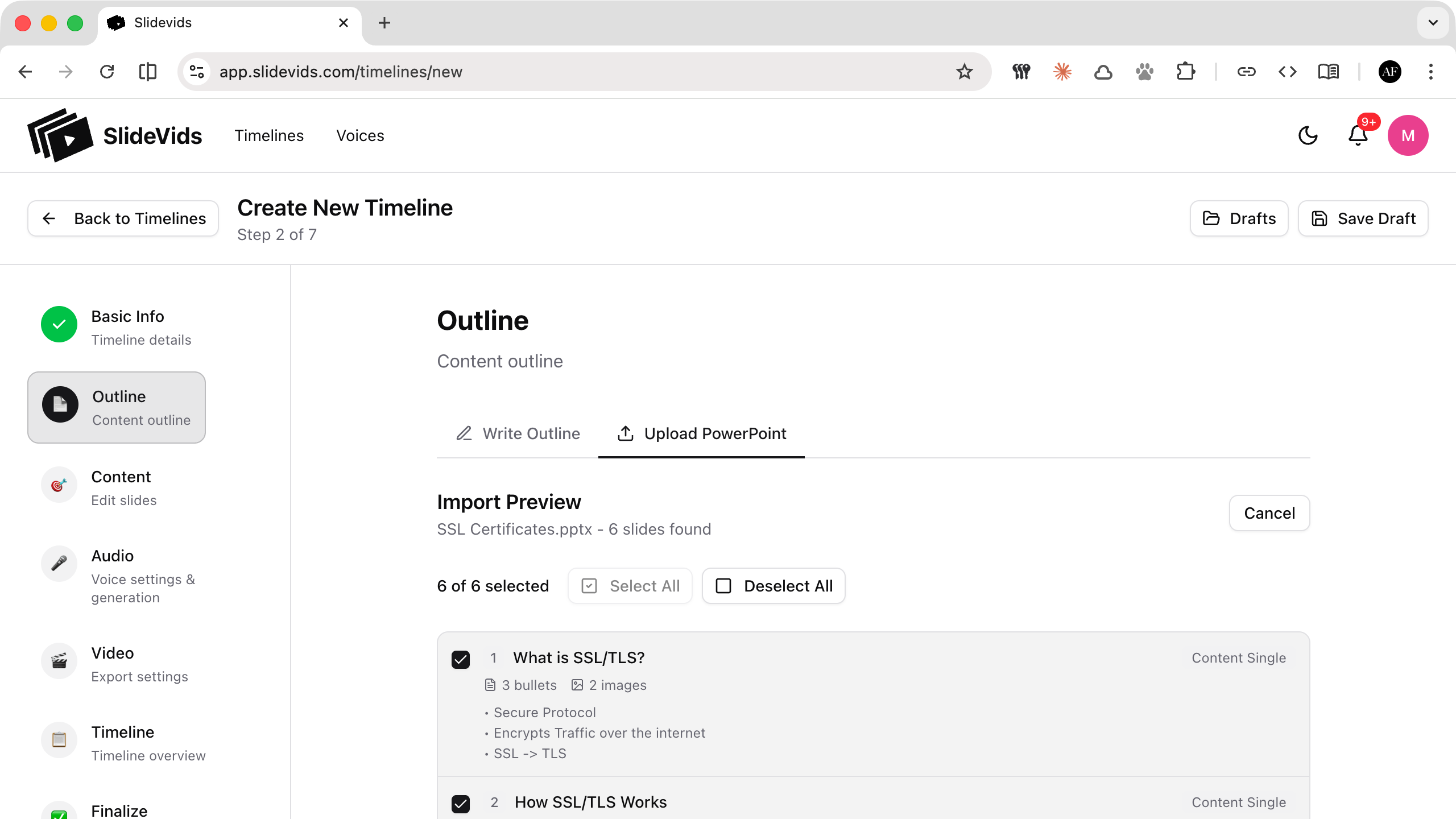
.pptxfile (or use the file picker) - Preview Your Slides: See extracted titles, bullet points, images, and speaker notes at a glance
- Select What to Import: Check or uncheck individual slides—import all of them or just the ones you need
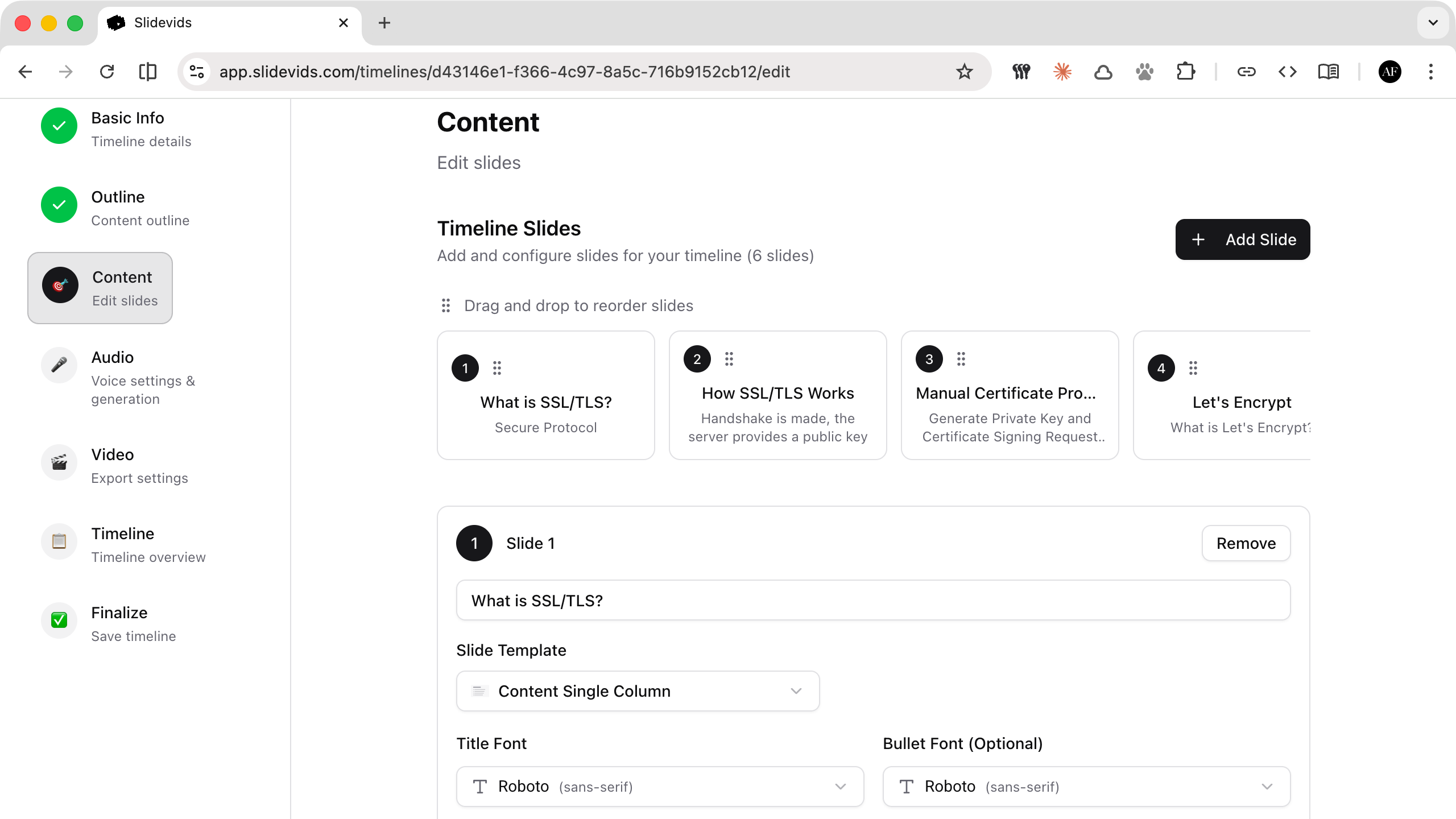
- Confirm and Edit: Your timeline is created instantly, fully editable in the standard editor
- Add AI Narration: Generate professional voiceovers from your speaker notes or slide content
- Export Your Video: Render a polished video ready to share
For smaller presentations (5 slides or fewer), the entire process happens instantly. Larger files are processed in the background with real-time progress updates—you’ll see exactly which slide is being extracted.
Use Cases
Training and Onboarding
Convert your training library into on-demand video courses. New hires watch at their own pace instead of waiting for the next scheduled session. Speaker notes become narration, so subject matter experts don’t need to record anything.
Sales Enablement
Turn pitch decks into prospect-ready videos. Instead of emailing a static PDF that might never get opened, send a narrated video that walks through your value proposition. Update the deck, re-import, and generate a fresh video in minutes.
Quarterly and Company Updates
Leadership presentations shouldn’t live and die in a single meeting. Import your quarterly updates and create videos that the entire organization can watch asynchronously—especially useful for distributed teams across time zones.
Knowledge Preservation
Every organization has institutional knowledge locked in old presentations. Import those archives into SlideVids and create a searchable video library before that knowledge walks out the door.
File Support and Limits
| Specification | Details |
|---|---|
| Supported format | .pptx (PowerPoint 2007+) |
| Maximum file size | 100 MB |
| Maximum slides | 200 per file |
| Image formats | PNG, JPEG, GIF, BMP, TIFF |
| Tier availability | All tiers, including Free |
Not currently supported: .ppt (legacy format), .odp, or .key files. If you’re working in Google Slides or Keynote, export to .pptx first—both tools make this straightforward.
What to Expect
PowerPoint Import focuses on content extraction, not pixel-perfect layout replication. SlideVids uses its own template system to ensure every video looks professional and consistent. Here’s what to keep in mind:
- Text and images: Fully extracted and editable
- Speaker notes: Preserved and ready for narration
- Animations and transitions: Not carried over (SlideVids handles these in video rendering)
- Charts, SmartArt, and tables: Text content is preserved; visual elements are flagged during preview
- Embedded video and audio: Not extracted (add media directly in the timeline editor)
After import, your slides are standard SlideVids slides. Change templates, edit text, swap images, adjust colors—everything is fully editable.
Get Started
Ready to turn your presentation library into professional videos?
- Already a user? Create a new timeline and choose “Upload PowerPoint” to try it now
- New to SlideVids? Sign up for a free account and import your first deck in minutes
- Have questions? Reach out to our support team. We’re happy to help.
Related Features
- PowerPoint Import — Full details on importing PPTX files into SlideVids
- AI Voices — Add professional narration to your imported slides with 27+ AI voices